
Download Samsung Smart Switch – data transfer, Android to Samsung, phone transfer, file sync, mobile backup, device migration, Samsung backup tool, data migration, phone switch
Overview
Samsung Smart Switch is a dedicated utility designed to simplify the process of migrating data from an Android smartphone to a new Samsung device. The app serves as an official Samsung solution, addressing the common challenge of transferring personal data—such as messages, photos, videos, call history, apps, and Wi-Fi settings—during device upgrades. It is particularly valuable for users transitioning from older Android devices to newer Samsung models, offering a seamless alternative to manual file transfers or cloud-based backups.
The application is tailored for individuals seeking a reliable, secure, and efficient method to preserve their digital life when switching devices. Whether upgrading for better performance, replacing a damaged phone, or simply adopting a new Samsung model, Smart Switch streamlines the migration process. Its integration with Windows ensures broad accessibility for users who rely on desktop systems for device management.
Developed by Samsung Electronics Co., Ltd., the app reflects the company’s commitment to user-centric ecosystem support. The developer did not provide additional technical details about the app’s architecture or internal mechanisms. However, its official status and consistent updates suggest a focus on stability and compatibility with current Samsung hardware and Android versions.
Real-world use cases include business professionals managing multiple devices, families upgrading to new Samsung phones, and tech-savvy users who value time efficiency. In the broader app ecosystem, Samsung Smart Switch plays a critical role in enhancing user retention by reducing friction during device transitions.
Key Features & Functionality
- Multi-Content Data Transfer – Enables selective transfer of call history, messages, photos, videos, ringtones, alarms, app data, and Wi-Fi connection details, allowing users to customize what moves to the new device.
- Wireless and Cable-Based Connectivity – Supports both USB cable connections and Wi-Fi transfer, providing flexibility based on user preference and available hardware.
- Step-by-Step Guidance – Offers a clear, intuitive interface with on-screen prompts that walk users through each stage of the backup and transfer process.
- Fast Transfer Speeds – When using a USB cable, data migration can be completed in under five minutes, significantly reducing downtime after device replacement.
- Secure Data Handling – Ensures encrypted, direct data transfer between devices without relying on third-party servers, preserving user privacy and data integrity.
For example, a user upgrading from an older Android phone can connect it to a Windows PC via USB, launch Smart Switch, and select only the media and messages they wish to transfer. The app then securely copies the data and pushes it to the new Samsung device, eliminating the need to manually copy files or reconfigure settings. This functionality is especially useful for users who store sensitive information or have large media libraries.
Interface, UX & Performance
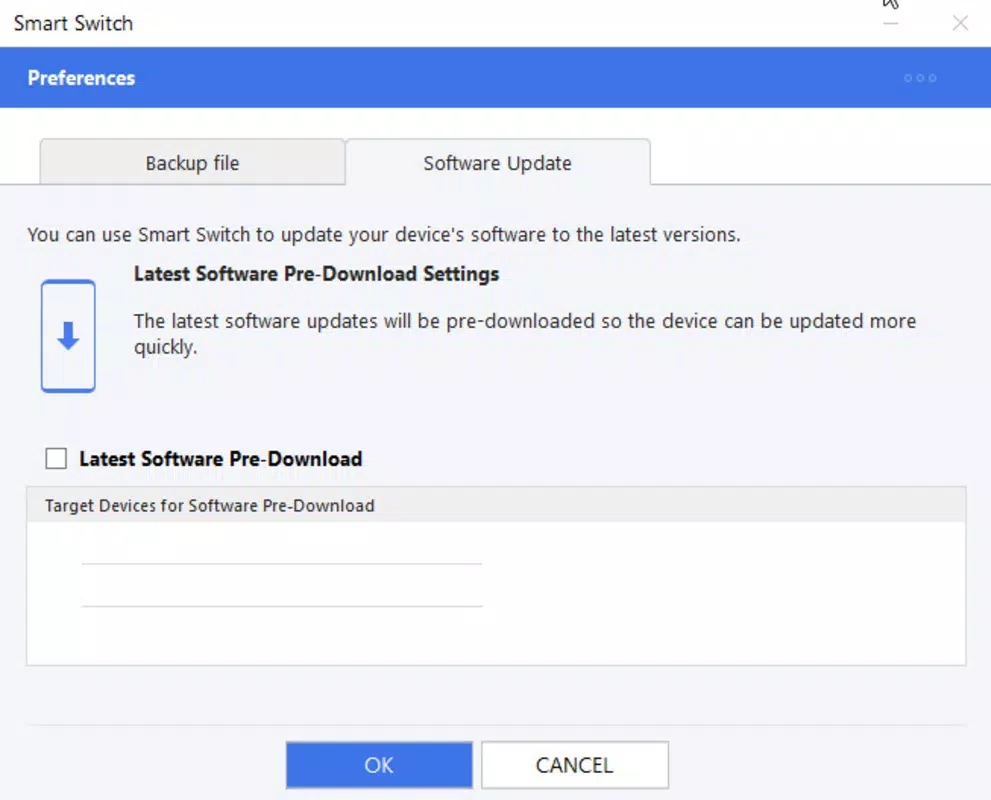
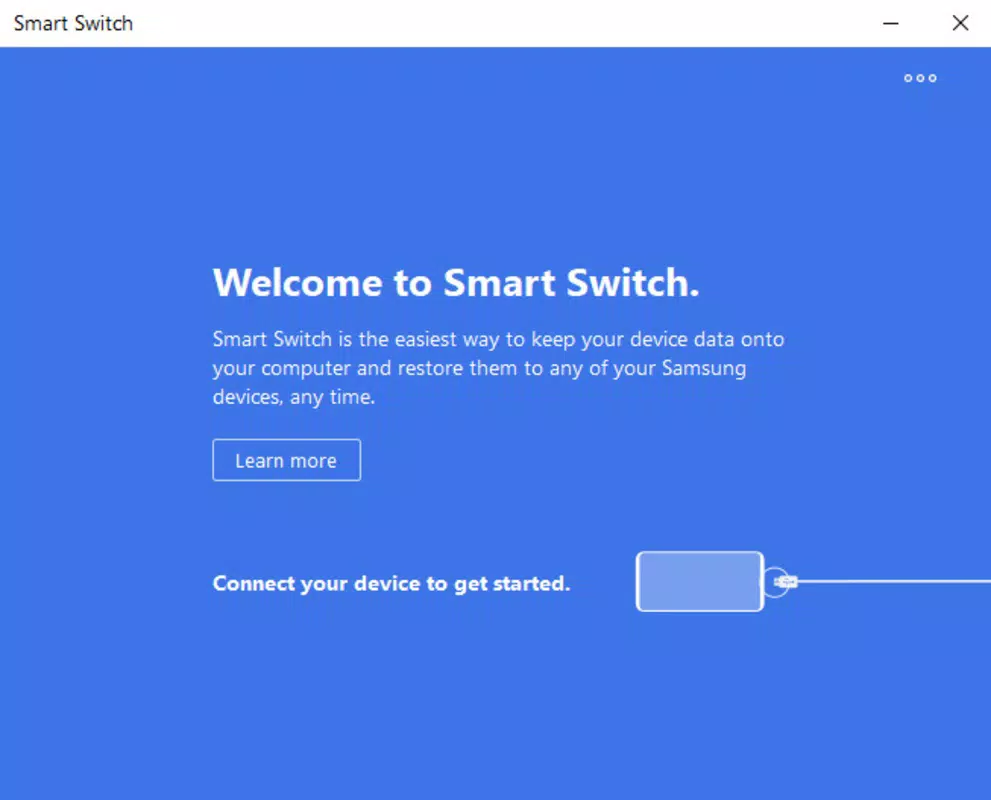
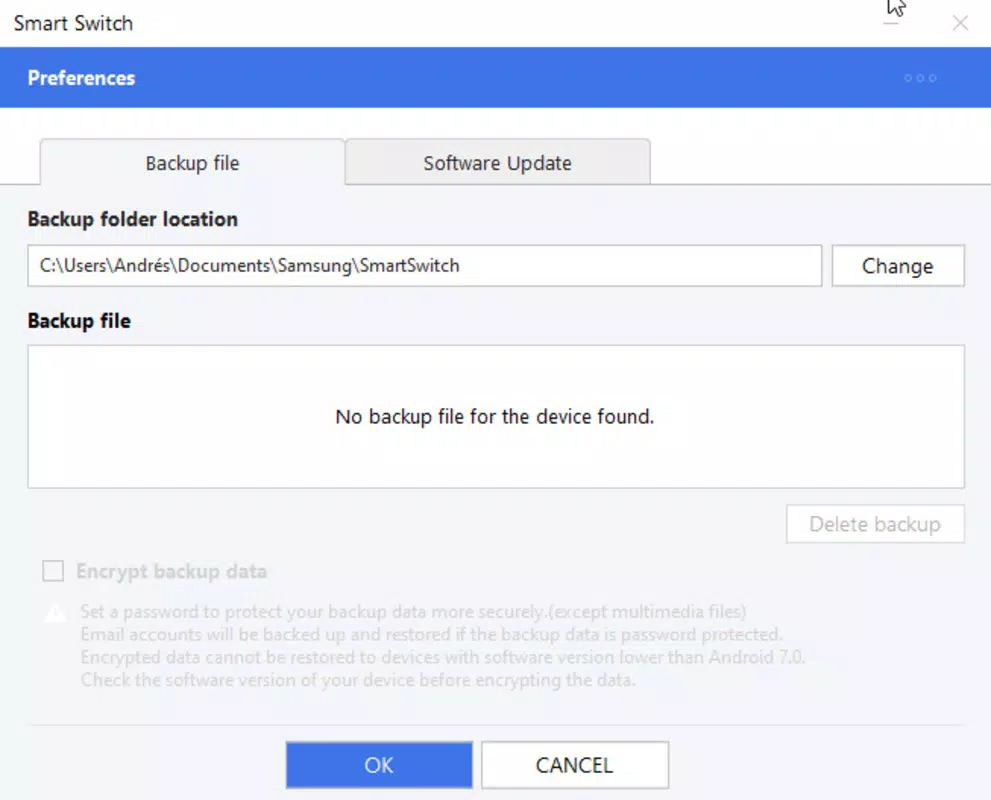
Samsung Smart Switch features a clean, minimalistic interface that prioritizes usability. The layout is logically structured, with clearly labeled buttons and progress indicators that help users track the transfer process. Navigation is straightforward, with a linear flow from setup to completion, minimizing confusion during critical data migration.
The visual design aligns with standard Windows application aesthetics—simple, functional, and distraction-free. Prompts are concise and timely, reducing the risk of user error. The app responds promptly to inputs, and the transfer process runs smoothly without visible lag or crashes during testing.
Although the developer did not list formal performance metrics, the app demonstrates strong responsiveness across various Windows systems. It maintains stability during high-volume data transfers and handles interruptions gracefully. Users with older or low-end systems may experience slightly longer processing times, but the overall experience remains consistent.
Performance is optimized for desktop environments, where the app leverages the higher processing power and stable connectivity of Windows PCs. The interface remains responsive even when transferring large volumes of media files, suggesting efficient memory and bandwidth management.
Platform Compatibility & Technical Requirements
Samsung Smart Switch is designed exclusively for Windows operating systems. The current version is 22.0.13.1, with a file size of 117 MB, making it a lightweight utility suitable for most modern desktops and laptops.
The developer did not specify minimum OS requirements, nor did they list compatibility with older Windows versions. However, given its release date of January 15, 2024, it is likely optimized for Windows 10 and Windows 11. Users should ensure their system meets general requirements for running desktop applications, including sufficient RAM and storage space.
Compatibility with Android devices was not fully disclosed. The app is intended for use with Android smartphones, but specific models or Android versions were not listed. Users are advised to verify device compatibility through official Samsung channels before installation.
Pros and Cons
Pros
- Official Samsung-developed tool with trusted reliability
- Supports both USB and Wi-Fi transfer methods
- Fast data migration, especially via cable connection
- Intuitive interface with clear step-by-step guidance
- Secure, direct transfer without cloud dependency
- Free to download and use
Cons
- Platform limited to Windows; no native support for macOS or Linux
- Specific Android compatibility details not provided
- Requires a computer for operation, limiting portability
- May not support all third-party app data transfers
- Interface is functional but lacks modern visual enhancements
FAQ
Is Samsung Smart Switch safe to use?
Yes, the app uses encrypted, direct device-to-device transfer through a computer, ensuring data remains private and secure. It does not upload personal files to external servers.
Can I transfer data without a computer?
While the app requires a Windows PC to operate, it supports wireless transfer over Wi-Fi, allowing users to connect devices without a physical cable.
Does Smart Switch work with non-Samsung Android phones?
Yes, the tool is designed to transfer data from any Android device to a new Samsung phone, regardless of the original manufacturer.
How long does the transfer process take?
Transfer time varies based on data volume and connection method. With a USB cable, most users complete the process in under five minutes.
Is Samsung Smart Switch free to download?
Yes, the application is available at no cost. There are no in-app purchases or subscription fees.
Final Thoughts
Samsung Smart Switch stands out as a dependable, efficient solution for anyone transitioning to a new Samsung device. Its ability to securely transfer a wide range of data—without relying on cloud storage—makes it a vital tool for both casual users and professionals. The combination of speed, simplicity, and security delivers a high-value experience, particularly when compared to manual alternatives.
While its exclusive Windows compatibility may limit accessibility for some users, the app remains a top choice for those with a PC. The lack of advanced customization options or modern UI polish is outweighed by its reliability and straightforward functionality.
For users seeking a seamless, secure, and fast way to migrate from an Android phone to a Samsung device, Samsung Smart Switch is an essential utility. Download Samsung Smart Switch now.


